 English
 Spanish

Bladen Community College’s Information Technology Services Department is dedicated to providing a friendly, reliable, and innovative technology experience for every student, faculty, and staff member.
Please follow the instructions below very carefully for a successful Password Reset. Remember there are very specific requirements to creating a new password, so read all the infomation before you begin with the reset.
READ INSTRUCTIONS FIRST
Before clicking on one of the Password Reset buttons below.
Step-by-step instructions to reset your BCC password:
- Go to Microsoft’s Online Password Reset by clicking the Red Buttons above.
- Under the “Who are you?” section, enter your BCC email or username
- Fill out the Captcha
- Click “Next”
- Under “Verification Step 1”, select your preferred authentication method to verify your identity
- Complete the verification and click “Next”
- Once your account has been verified, you will be prompted to change your password
- Enter and confirm your new password and click “Finish”
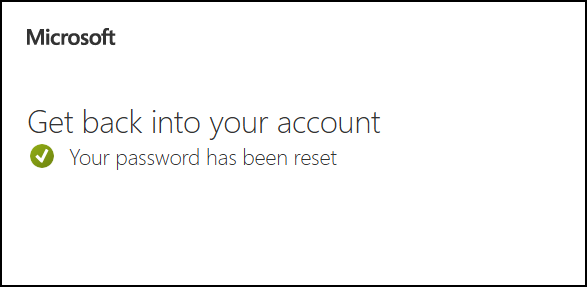
- Once your new password has been set, you will receive the following message:
If you continue to experience difficulties accessing your account, please contact the BCC IT department at
910-879-5522 or [email protected]
Your BCC password will allow you to access all myBCCConnect student services (e.g., BCC Email/Outlook, Moodle, Self-service, etc.)
Please do NOT share your login information with anyone.
In order to change your password, your new password must meet the following requirements:
– Must be at least 16 characters long
– Cannot contain your username/email exceeding two consecutive characters
– Include characters from the following categories:
- Uppercase characters (A-Z)
- Lowercase characters (a-z)
- Numbers (0-9)
- Special characters (e.g., !, $, #, etc.)
– Cannot match your previous four passwords
Your new password will be valid for 90 days before you have to reset it again.